
How to Run Amazon Ads for Your Book
Learn why Amazon ads work differently for books, which numbers to watch, how to set up each campaign type and how to use the two Step 8 ad generators.
Quick Start
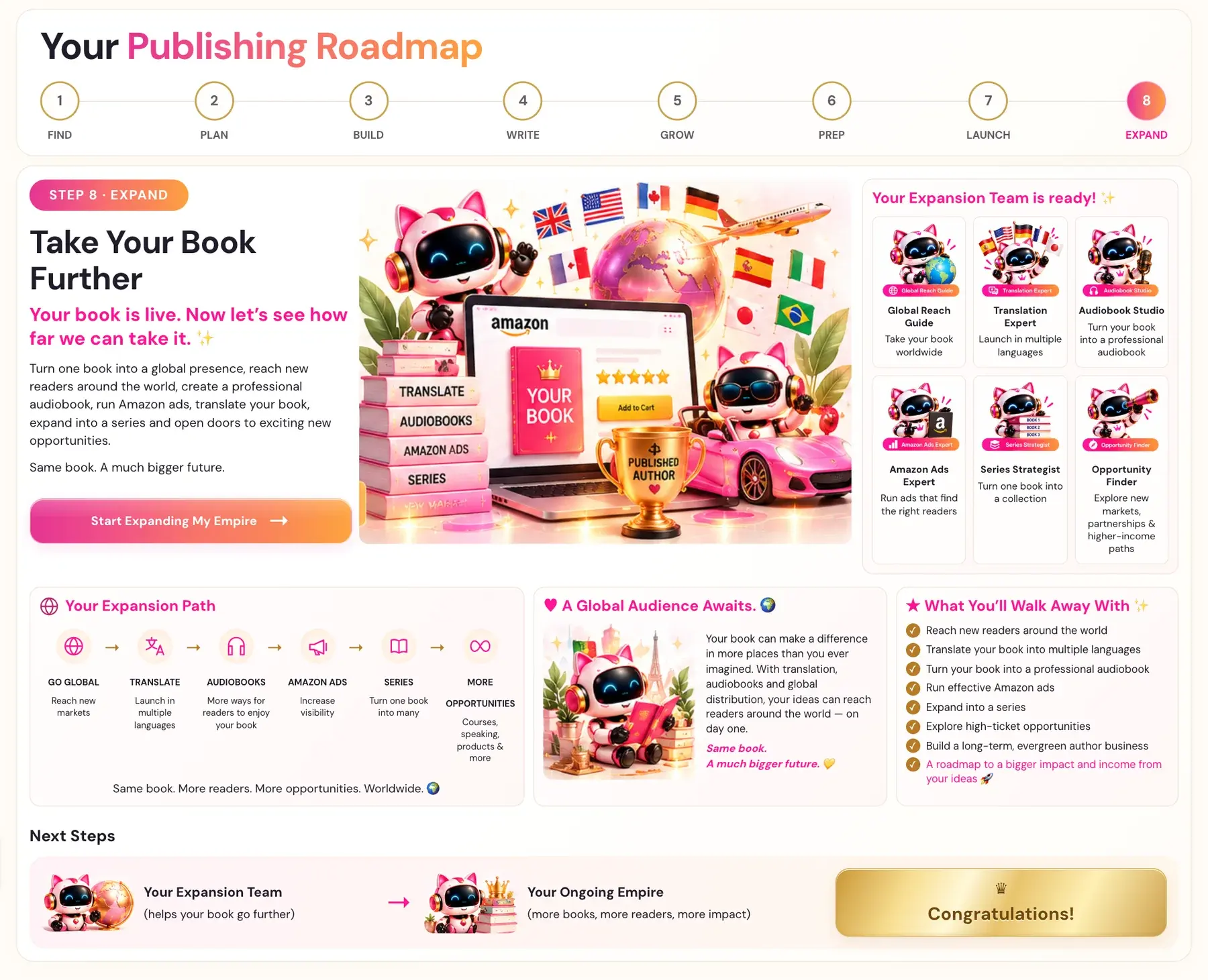
Amazon ads are part of Step 8 · EXPAND, where the Amazon Ads Expert helps you run ads that find the right readers. Setting up Amazon ads for your book follows five steps.
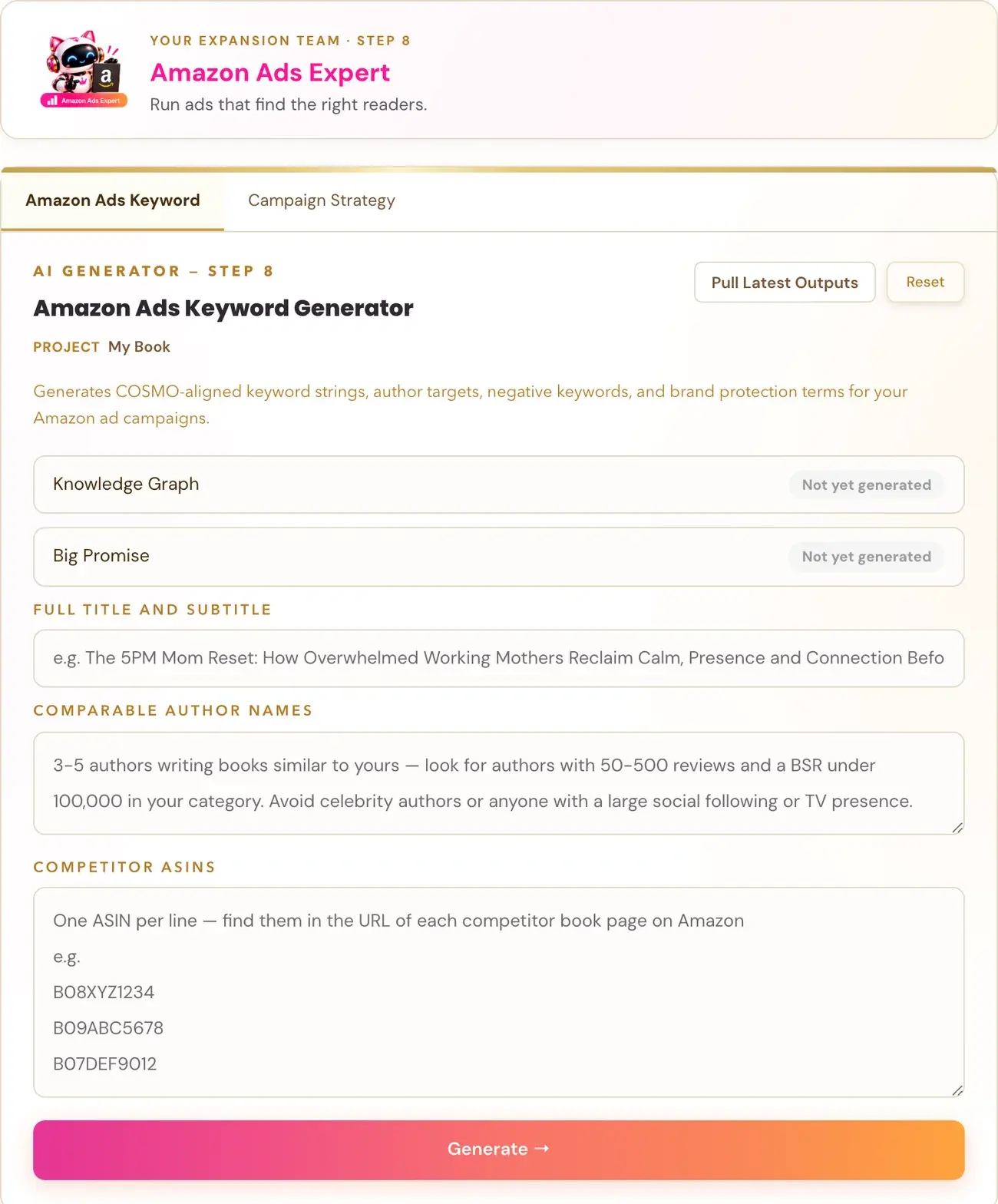
- Make sure your Knowledge Graph and Big Promise are done.
- Run the Amazon Ads Keyword Generator to get your keyword lists.
- Run the Campaign Strategy Generator with your Kindle price and Kindle Unlimited choice.
- Create each campaign in Amazon Ads using the starting bids and match types in your guide, and add the negative keywords to every campaign.
- Follow ACoS if you are not in Kindle Unlimited and TACoS if you are. TACoS you work out each week yourself.
Full Guide
Step 1: Understand why ads work differently for books
Amazon ads for books are not like ads for a physical product. Books have low margins. If your book is in Kindle Unlimited, the pages people read do not show up in the usual ad numbers. And Amazon decides which searches an ad is even allowed to show for, based on what your book is about.
Because of that last point, a keyword that would work for a physical product will often fail for a book. If a keyword does not match your book's exact subject, Amazon simply will not show the ad. Every keyword you use must be tightly relevant to your specific book. Volume without relevance is wasted spend.
Step 2: Learn the two key numbers
ACoS means advertising cost of sale. It is what Amazon shows in the ads dashboard. The formula is ad spend divided by the sales your ads brought in. ACoS is the number to follow if your book is not in Kindle Unlimited.
Breakeven ACoS is the number that tells you when ads cost more than the book earns. The course uses:
- A Kindle price of $2.99 or more: royalty of 70%, so breakeven ACoS is 70%.
- A Kindle price below $2.99: royalty of 35%, so breakeven ACoS is 35%.
Any ACoS above breakeven means you are spending more on ads than the book earns from them.
TACoS means total advertising cost of sale. It is the right number if your book is in Kindle Unlimited. ACoS is misleading there, because it only sees sales, not the page reads (KENP) royalties. TACoS is the total ad spend divided by total revenue, with sales and page reads combined. TACoS is not shown in Amazon Ads, so you work it out yourself each week:
- Take your total ad spend from the Amazon Ads dashboard.
- Take your total royalties from your KDP Reports (in KDP, go to Reports, then Royalties).
- Divide the ad spend by the total royalties.
Here are the targets the course gives:
| Number | Excellent | Healthy | Normal during launch | Review it |
|---|---|---|---|---|
| TACoS (Kindle Unlimited books) | Under 10% | 10% to 20% | 20% to 35% | Above 40% |
| ACoS (other books) | Under 15% | 15% to 30% | 30% up to breakeven | Above breakeven |
If your ACoS is above breakeven, you are losing money on ads, so reduce your bids or pause the keywords that are not performing. If your TACoS is above 40%, review your bids and your book's listing quality.
Step 3: Set a daily budget
Set $5 to $10 per campaign as a ceiling, not as a target.
If you see zero impressions after 48 hours, raise the bid, not the budget.
Step 4: Run the Amazon Ads Keyword Generator
This generator makes your keywords. Your Knowledge Graph and Big Promise fill in by themselves, so run those two generators first. You add your Full Title and Subtitle, and you can add Comparable Author Names and Competitor ASINs, which are optional. The tool uses your Gemini key. Connecting a key is super easy, takes only a few seconds, and the app guides you through it step by step. Using your own key is free or minimal in cost. See How do I connect my AI key?.
You get four keyword groups:
- Audience keywords come from who the book is for.
- Functional keywords come from what the book does.
- Context keywords come from when, where and why. They include gift search phrases for Mother's Day, birthday and Christmas.
- Interest keywords cover adjacent topics, comparable authors, and paper products like journals and planners.
You also get comparable author name keywords, an ASIN targeting list, standard and book-specific negative keywords, and brand protection keywords. Full details are in How does the Amazon Ads Keyword Generator work?.
Step 5: Run the Campaign Strategy Generator
Enter your Kindle Price and KU Enrolled? (Yes or No). It works out your breakeven ACoS, tells you whether to follow ACoS or TACoS, and writes a personalized, copy-paste-ready campaign setup guide that you read while you set up each campaign in Amazon Ads Manager. See How does the Campaign Strategy Generator work?.
Step 6: Create your campaigns
These are the campaign types and the starting bids from the course.
| Campaign | What you target | Match type | Starting bid | Bidding strategy |
|---|---|---|---|---|
| Auto campaign | Amazon targets from your listing | Amazon targets for you | $0.35 | Dynamic Bids, Down Only |
| Campaign 1, Audience | Who the book is for | Phrase and Exact | $0.43 | Dynamic Bids, Down Only |
| Campaign 2, Functional | What the book does | Phrase and Exact | $0.43 | Dynamic Bids, Down Only |
| Campaign 3, Author targets | Comparable author name searches | Phrase and Exact | $0.43 | Dynamic Bids, Down Only |
| Campaign 4, Brand protection | Your own name and book title | Exact only | $0.88 | Fixed Bids |
| ASIN targeting | Product targeting | Product targeting | $0.30 | Dynamic Bids, Down Only |
Here is how each one works.
The Auto campaign. Amazon targets automatically from your book's listing. Run it for 2 to 4 weeks before you change anything. Each week, check the Search Term Report and copy the search terms that convert into Campaign 1 or Campaign 2 as Exact match.
Campaigns 1, 2 and 3. Use Phrase and Exact match, not Broad.
Campaign 4, brand protection. This protects readers who search for your name and book title from seeing competitor ads. The match type is Exact only, and the bidding strategy is Fixed Bids.
ASIN targeting. This is a separate campaign type. It is Product Targeting, not Keyword Targeting. Add your own book's ASIN as a negative product target, so you do not bid against your own page.
Category targeting (optional). Under Product Targeting, choose Categories. Pick two or three narrow subcategories that match your book exactly, never broad parent categories. The Category Scout output from Step 7 · LAUNCH is the best starting point. The starting bid is $0.30 with Dynamic Bids, Down Only. Category targeting reaches browsers, not searchers, so keyword campaigns always come first. Run it only after your keyword campaigns are active.
Step 7: Leave the adjustments alone at first
Placements. Leave Top of search, Rest of search and Product pages all at 0% for the first 2 to 4 weeks. After you check the Placement Report, boost a placement that converts well by 20% to 30%.
Audiences. Leave everything at 0% on day one. After 2 to 4 weeks of baseline data, activate "High interest based on shopping history" at plus 20% to 30%. Later you can add a boost of 40% for "Clicked or Added brand product to cart" and 50% for "Purchased brand product", to reach readers who already know your book.
Step 8: Add negative keywords to every campaign
Negative keywords stop your ad from showing for searches you do not want. Add these to every campaign: free, free pdf, free download, summary, book summary, epub, audiobook free, used, cheap, discount, rental, fiction, novel, children, kids book, teen, young adult.
The Amazon Ads Keyword Generator also writes negative keywords made for your specific book.
Step 9: Know the 2026 platform updates
Sponsored Display now runs off Amazon too, reaching third-party apps, news sites and Kindle devices. Sponsored Brands now support custom images and videos. According to Amazon Ads, custom images average 48% higher click-through rates on mobile than product images alone.
Step 10: Check your numbers every week
Each week, check the Search Term Report and copy the search terms that convert into your campaigns as Exact match. Compare your ACoS or TACoS with the targets above. If you are in Kindle Unlimited, work out TACoS from your Amazon Ads spend and your KDP royalties.
Step 11: Take your ads to other countries
The Amazon Ads Translation Generator turns your Amazon Ads Keyword Generator report into keywords for another Amazon store. It ends with a short Bidding Note, which says that international stores have far less ad competition than the US store, so bids should start lower and be adjusted based on real performance.
Troubleshooting
My ad has zero impressions after 48 hours. Raise the bid. Do not raise the budget.
My ACoS is above breakeven. Reduce your bids, or pause the keywords that are not performing.
I am in Kindle Unlimited, and my ACoS looks terrible. ACoS only sees sales, not page reads. Use TACoS instead.
The keyword generator says a field is not loaded. Run the Knowledge Graph Generator and the Big Promise Generator first, then click Pull Latest Outputs.
I do not know what to bid. Use the starting bids in your Campaign Strategy guide.
Where to Go Next
If you want to sell in another country, continue with the Amazon Ads Translation Generator. To reach readers in more ways, see How to Create an Audiobook with the Audiobook Creator. Not sure where to start? The Course Coach inside the app guides you through each step, so you are never stuck on a button.
Related Tutorials
Last checked in the app: October 14, 2026.
Still Need Help?
Inside the app, the Course Coach answers your questions and guides you step by step. You can also write to us and we will get back to you.
Contact Support