
How to Use My Books in the Writing Studio: Create, Switch, Download and Delete
Learn the My Books tab: create or import a book, read a book card, download your PDF or ePub, and delete a book safely.
My Books is the home of every manuscript you have. This tutorial shows you every button on it.
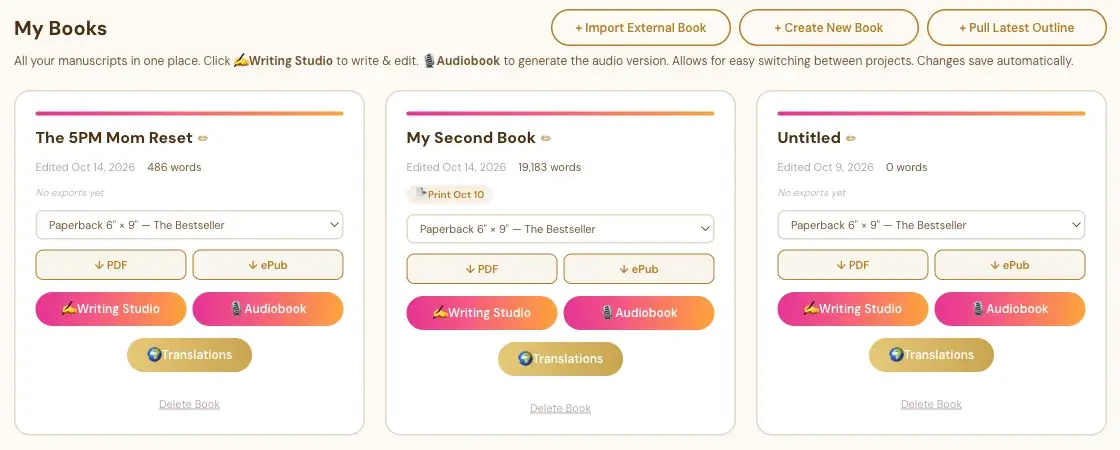
Step 1: Read Your Book Cards
The My Books tab shows every manuscript you have as its own card. Each card tells you how the book is doing and gives you the buttons to keep working on it.
What Is on a Book Card?
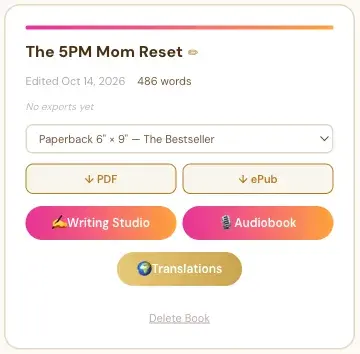
From top to bottom:
- The title. The pencil next to it is for editing.
- When it was last edited, and the word count.
- Export badges. After you export, a small badge shows the date, like "Print Oct 10" or "eBook Oct 1". A book you haven't exported says "No exports yet."
- The size menu. It shows the PDF size for the book, like "Paperback 6" × 9" — The Bestseller."
- ↓ PDF and ↓ ePub. They download your book as a PDF or an ePub.
- ✍ Writing Studio. Opens the book so you can write and edit.
- 🎙 Audiobook. Opens the Audiobooks tab for this book. See The Audiobook Creator and Your Manuscript.
- 🌍 Translations. Opens the translations for this book. A translated book shows 📝 Translator's Notes here instead.
- Delete Book. Removes the book for good, after you confirm. See How to Delete a Book.
What Are the Three Buttons at the Top?
- + Import External Book: for a book you already wrote in Word or ePub. See How to Import a Word or ePub File.
- + Create New Book: a blank book. See How to Create a New Book.
- + Pull Latest Outline: brings in your most recent outline from the Chapter Detail Generator. See How to Pull Your Outline Into the Writing Studio.
Do My Changes Save Automatically?
Yes. The tab says it right at the top: "Changes save automatically."
Step 2: Create a New Book
Want to start a fresh book? Open the My Books tab, click + Create New Book, and fill in the naming window. Your new book opens, ready for you to write.

How Do I Create a New Book?
- Click the My Books tab at the top of the Writing Studio.
- Click + Create New Book.
- In the window Please name your manuscript, fill in your Working title, your Author name and your Language.
- Click Save & continue.
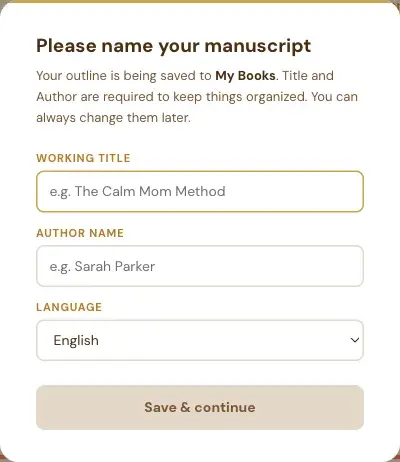
Why Does It Ask for a Title and an Author?
The window says it plainly: "Title and Author are required to keep things organized. You can always change them later." So a working title is fine. It doesn't have to be final.
Can I Close the Naming Window Without Filling It In?
No. This window is on purpose: it has no Cancel button, and Escape doesn't close it. Fill in a working title and your name, and you can change both later.
What Happens After I Save?
Your new book opens in the Writing Studio, with no chapters yet. You then choose how to fill it. See How to Start a Blank Book and Add Chapters.
What If I Haven't Connected Storage Yet?
The first time you create or import a book, the app asks you to choose where to keep a backup copy: Google Drive, Dropbox, OneDrive or your own computer. See How to Connect Cloud Storage.
Step 3: Switch Between Books
You can have several manuscripts in the Writing Studio at once, one for each book project. Switch with the manuscript dropdown at the top of the Chapters panel, or open the My Books tab to see them all.
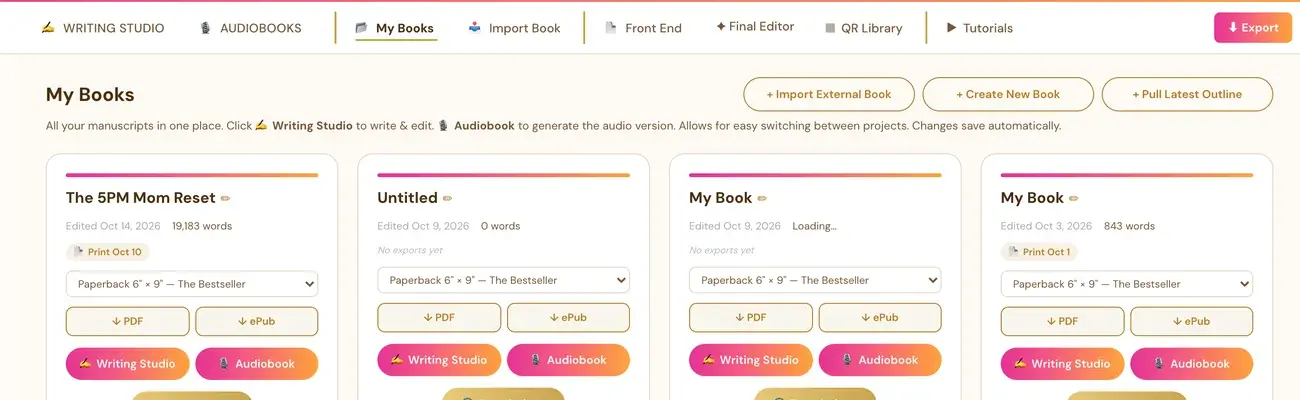
How Do I Switch to Another Book?
Click the manuscript name dropdown at the top of the Chapters panel. It shows your current book's title. Pick any other manuscript from the list. Or click the My Books tab to see all your projects.
The same dropdown also has + Create New Book, so you can start a book without leaving the Writing Studio.
What Is in the My Books Tab?
Each manuscript is its own card. A card has:
- PDF and ePub download.
- Writing Studio, which opens the book for editing.
- Audiobook, which opens the Audiobooks tab for that book.
- A golden Translations button.
- Delete.
PDF and ePub downloads and word counts read your latest saved manuscript sections. If a save fails, fix the save error before you export.
What Do the Three Buttons at the Top Do?
Three buttons at the top of My Books start a new book, and each does something different:
- + Import External Book: for a book you already wrote somewhere else (Word or ePub). It opens the Import Book tab.
- + Create New Book: a truly blank book, starting from nothing. It asks for a working title, an author name and a language before it creates the book.
- + Pull Latest Outline: brings in the most recent result from your Chapter Detail Generator (Step 3 · BUILD) as a ready-to-write outline. If you have more than one project in My Projects, clicking it opens a dropdown so you can pick which project's outline to pull. That matters when you're working on more than one book. If you have no projects yet, the dropdown says "No projects yet."
Why Does It Ask Me to Choose a Storage Platform?
The first time you click + Create New Book or + Import External Book anywhere in the app, a "Choose your storage platform" screen appears (Google Drive, Dropbox, OneDrive or Save to This Computer) before you can go on. When you connect your own storage, a real backup copy of your book lives somewhere that's truly yours, not just inside the app. You connect once, and the app remembers it for every future new or imported book, anywhere in the app.
If you close that window with the × instead of connecting, that action is cancelled. No book is created. Click + Create New Book (or Import) again and connect a provider. A book you already have open keeps autosaving no matter what. See How to Connect Cloud Storage.
How Do I Start a New Book From a New Outline Without Losing My Current One?
Create a new manuscript first with + Create New Book under My Books. Then pull or paste the outline into that new, empty book.
Inside the Writing Studio, if your current book has no outline yet, Pull latest outline fetches your most recent Chapter Detail Generator result and applies it, and Paste outline lets you paste one in yourself. Both are in the Chapters panel. The Writing Studio never applies a new outline behind your back.
Is a Book the Same as a Project?
No. A Project (the My Projects page, with your generator results) and a manuscript in the Writing Studio's My Books are two separate things, and they're not linked. Creating a project doesn't create a manuscript. Switching projects doesn't change which manuscript is open in the Writing Studio, and the other way around. See Projects and Books: What Is the Difference?.
Step 4: Delete a Book
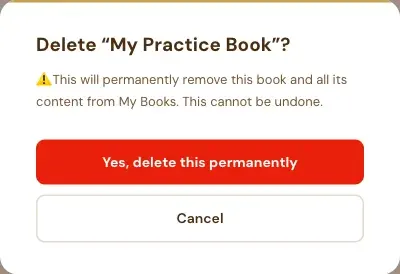
To delete a book, click Delete Book at the bottom of its card in My Books, then confirm twice. Deleting is permanent, so the app asks you twice.
How Do I Delete a Book?
- Open the My Books tab.
- Find the card for the book and click Delete Book at the bottom.
- Read the first message. It names the book: Delete "[your book's title]"? Click Yes, delete this permanently, or click Cancel to keep the book.
- A second window asks you to confirm again. It says "This cannot be undone." Type DELETE in the box, then click Delete permanently. Or click Cancel.
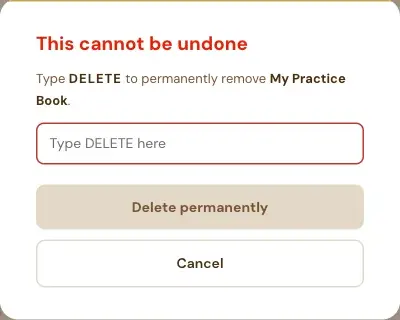
The Delete permanently button stays grey until you've typed DELETE, so you can't delete a book by accident.
What Does Deleting Remove?
The message says: "This will permanently remove this book and all its content from My Books. This cannot be undone."
What Should I Do Before I Delete a Book?
Check the title in the message, so you delete the right one. If you want a copy of your writing, download a PDF or ePub from the book's card first, or use Export. See How to Export Your Book.
Can I Get a Deleted Book Back?
The app says it cannot be undone, so delete only when you're sure. If you deleted by mistake, contact support right away at contact@goldenbestseller.com.
What Comes Next?
Start writing with How to Write Your First Section. Not sure where to start? The Course Coach inside the app guides you through every step, so you're never stuck on a button. Back to Step 4 · WRITE.
Related Tutorials
Last checked in the app: October 14, 2026.
Still Need Help?
Inside the app, the Course Coach answers your questions and guides you step by step. You can also write to us and we will get back to you.
Contact Support